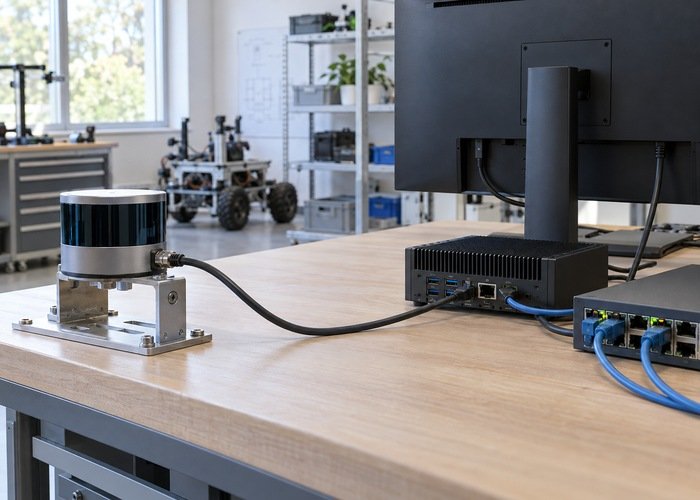
When a LiDAR viewer displays a point cloud but the ROS driver receives no data, the sensor has passed one useful test, not the complete integration test. Compare the viewer and driver as separate network clients. Check the host interface, destination addresses, socket ownership and the driver’s actual output before replacing the sensor or reinstalling your robot software.
The quickest diagnostic path is a controlled comparison on the same computer, cable and power supply. First record a successful viewer session. Close it completely, then start the driver with a known configuration and collect evidence at each boundary. For a broader sensor-selection context, see the ROS 2 LiDAR buying checklist; this article focuses specifically on the gap between a working viewer and an empty driver.
Keep the robot stationary while investigating. Disable motion commands through your normal commissioning procedure and protect the optical window from contact. A network experiment should not also be a navigation experiment. Note the sensor model, firmware, host operating system and driver revision so the result can be repeated by another engineer.
Save the working baseline before changing anything
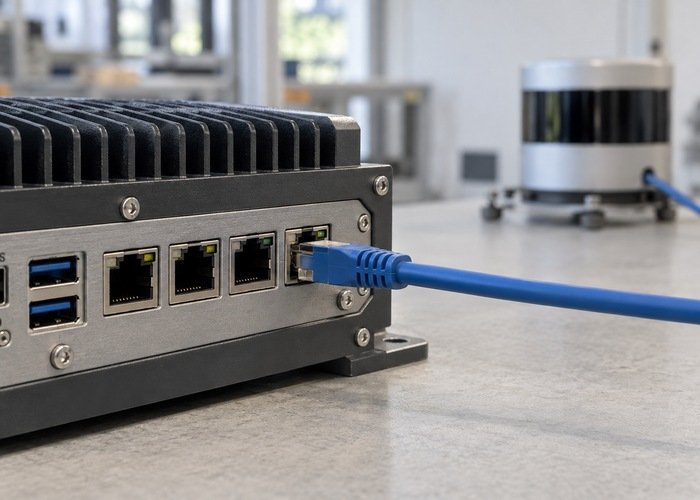
A viewer may use a different discovery process, configuration or receive path from the ROS driver. Its success therefore helps establish that the device can communicate under those conditions. It does not establish that the driver loaded the right file, bound the intended address or published the message type your application expects. Save the viewer’s selected interface and reported device address alongside the driver configuration.
The official sensor SDK reference separates device communication and configuration from the ROS layer. Use the documentation for your exact sensor and SDK generation. An example configuration for another model can be syntactically valid while describing the wrong communication path.
Make a short baseline record: power arrangement, cable, host port, interface address, device address and observed cloud behavior. Describe what you saw instead of writing “works.” For example, “cloud updates while the sensor remains stationary” is more useful than “connection good.” Do not change firmware, drivers and addressing together; doing so discards the comparison you just established.
Compare the host path, not just the device address
Inspect every active interface on the computer. A laptop with Wi-Fi, Ethernet, a USB network adapter and a container bridge can have several plausible routes. Write down which interface is physically connected to the sensor and which address the driver expects to receive on. Check the operating system’s route to the device as a separate piece of evidence.
On Linux, the ip-address manual documents interface address inspection. Read-only commands such as the following provide a useful starting record; replace interface and device names with your deployment’s real values:
ip -br address
ip route
ip route get DEVICE_ADDRESS
Look for a mismatch between the expected host address and the address actually assigned to that interface. Also check whether the selected route uses another adapter. Do not add a second default gateway as a reflex. Your sensor link and your internet connection may have different purposes, and a broad routing change can affect unrelated robot services.
Check who owns the receive sockets
Close the viewer and confirm its process exited before launching the driver. Depending on the program and socket options, another process may already occupy a needed local port. A background service, a previous driver instance or an automatically restarted application can make the test look inconsistent even though the hardware has not changed.
The ss socket-inspection manual provides the reference for viewing socket state. On a Linux host, inspect UDP listeners with ss -lunp. Process details can require appropriate local privileges. Compare the addresses and ports you observe with the model-specific documentation; do not assume every LiDAR uses the same port numbers.
If the expected socket never appears, investigate driver startup and configuration loading first. If it appears on an unexpected host address, investigate binding. If it appears correctly but receives nothing, move to packet arrival and destination checks. These observations separate three different failure paths that a blank point-cloud display cannot distinguish.
| Observation | Next check | Evidence to retain |
|---|---|---|
| Viewer works; driver has no expected listener | Startup log and loaded configuration | Process state and socket listing |
| Listener uses an unexpected local address | Host address and binding configuration | Interface address and route output |
| Packets arrive but no ROS message appears | Packet decoding and publication configuration | Short capture and driver log |
| ROS messages arrive but display is blank | Message type, subscriber policies and transforms | Topic details and display status |
Trace packets to the correct destination
A short capture on the sensor-facing interface can show whether traffic reaches the host, where it is addressed and which ports it uses. The tcpdump reference describes interface selection and packet filtering. Use a narrow capture for the target device rather than collecting unrelated production traffic.
Compare the successful viewer interval and failed driver interval. Are packets arriving on the same interface? Are their destination address and ports consistent with the driver configuration? Keep discovery or control traffic distinct from measurement traffic. Seeing one kind of packet does not prove that the point-data stream is being received and decoded.
If the capture shows no traffic, inspect the physical link and the device’s destination configuration before changing ROS subscribers. If traffic arrives at an unexpected address, inspect the address plan. If it reaches the documented destination, retain the capture and continue up the software path. Review relevant local firewall rules narrowly; do not permanently disable host protection merely to make a demonstration pass.
Confirm the ROS output independently of the viewer
The official driver documentation distinguishes launch configurations and output formats. Confirm which launch file you used and whether your consumer expects a standard point-cloud message or a model-specific message. A visualization that subscribes to the wrong topic cannot establish a sensor failure.
Use the ROS 2 topic-introspection tutorial to inspect the resolved topic name, type and endpoints. Namespaces and remapping matter. Save the actual output of topic inspection, rather than assuming the name in a sample launch file is the one your robot uses.
If a publisher exists but your subscriber remains silent, endpoint compatibility becomes a separate investigation. If messages arrive but cannot be drawn, inspect frame and time context. The 3D point-cloud ROS tutorial provides the next integration layer. Keep a network-path failure distinct from a display-path failure so you do not repeatedly change a working cable or sensor.
Build a useful escalation package
Include the exact driver and SDK revisions, configuration file, launch command, interface addresses, route output, socket listing and a short relevant capture. Remove unrelated device information and private network details before sharing publicly. A support engineer should be able to tell whether the first missing step was socket creation, packet reception, decoding or ROS publication.
For integration requirements beyond the bench, connect this evidence to your robotics LiDAR application. Record the intended host, output format and operating environment. A successful viewer session is helpful evidence, but it does not qualify the entire robot application or establish production readiness.
When asking LidarStar for integration guidance, send the bounded symptom and deployment requirements. The sensor clock-check guide becomes relevant once data flows and you investigate alignment. First solve the viewer-to-driver boundary; then validate timing and downstream behavior without reopening unrelated parts of the stack.
Frequently asked questions
Does a working viewer prove that the ROS driver is configured correctly?
No. It proves communication through that viewer’s path under the observed conditions. Driver addressing, binding, decoding and publication still need their own checks.
Should the viewer stay open while I test the driver?
Start with an isolated comparison in which only one client runs. Later test concurrent access only if the device and applications document and support it.
Is a ping response enough to prove measurement data reaches ROS?
No. It does not establish measurement-stream reception, decoding or publication. Follow the actual traffic and software boundaries.
Should I reinstall ROS immediately?
Save the current evidence first. A targeted address, socket or configuration correction is easier to assess than changing the complete environment without knowing which stage failed.